3 Pieces of free content

These important four steps will save you hundreds of hours.

Follow these steps in order and you'll be ready to post your first piece of content today.


REEL EDUCATION VIDEO: How to edit a Reel template in Canva
1. Open the template
Click the Canva template link you have been sent.
Select Use template for new design. This creates your own editable copy, so you will not change the original template.
2. Upload your videos
On a computer:
    1    Click Uploads in the left-hand menu.
    2    Select Upload files.
    3    Choose the video clips from your computer.
On the Canva app:
    1    Tap the Uploads or Camera roll option.
    2    Select the clips you want to use.
Wait for each clip to finish uploading before adding it to the Reel.
3. Replace the template videos
Click or tap the video already inside the template.
Drag your uploaded video directly over the existing video frame. When the frame highlights, release it.
Your clip will replace the template video while keeping the same size and position.
Repeat this for each page or scene.
4. Adjust how the video sits in the frame
Double-click or double-tap the video.
Move it around until the most important part is visible. You can also pinch or drag the corners to zoom in or out.
Select Done when it looks right.
5. Trim each clip
Click or tap the video, then select the Trim or scissors icon.
Drag the ends of the video timeline to choose which part of the clip will appear.
Try to use the most interesting moment and keep each clip close to the length already set in the template.
6. Change the text
Click or tap any text box.
Highlight the existing wording and replace it with your own.
Keep the wording short enough to be read quickly. Check that the text remains inside the safe area and is not too close to the top or bottom of the Reel.
7. Check every page
Use the timeline at the bottom to move through the full Reel.
Check that:
    •    Every template clip has been replaced
    •    The text is correct
    •    Nothing important is cropped
    •    The clips are in the right order
    •    No template instructions or placeholder text remain
8. Preview the Reel
Select the Play button at the top of the screen.
Watch the entire Reel before downloading it. Check the timing, transitions and text carefully.
9. Download it
Select Share, then Download.
Choose:
    •    File type: MP4 Video
    •    Pages: All pages
    •    Quality: Leave at the highest available setting
Select Download.
The finished Reel can then be transferred to your phone using AirDrop, Google Drive, Dropbox, email or another shared app, ready to upload to Instagram. Canva templates remain editable, allowing users to replace media, text and other elements before downloading the finished design.

SET FOR SUCCESS - Watch this first

You can speed this video up by clicking the settings gear icon at the base of the video.


1. REEL

GO TO CONTENT

2. CAROUSEL

GO TO CONTENT

3. STORY

GO TO CONTENT

MEMBERSHIP TOUR

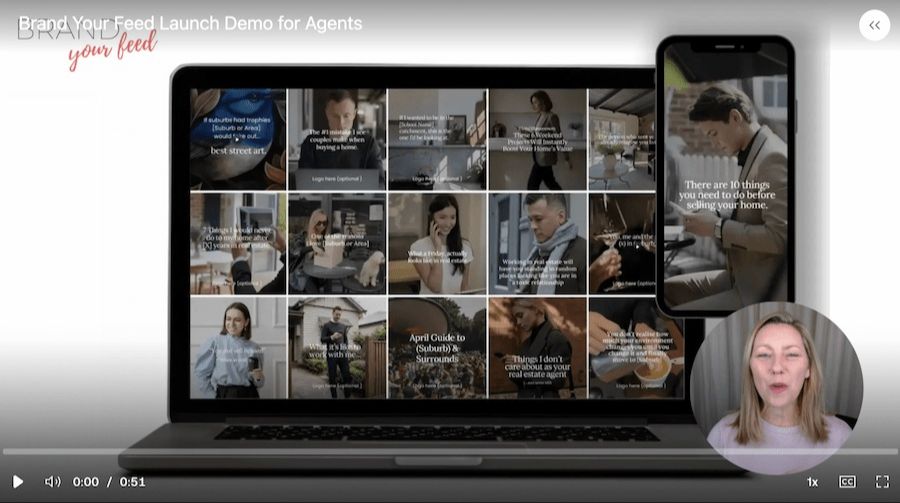
Watch the Brand Your Feed demo

Brand Your Feed Setup Progress Tracker

Setup Video
Reel
Carousel
Story
Membership Tour
Steps completed: 0 of 5

Next Step:  Join the Brand Your Feed Monthly Membership

JOIN THE MEMBERSHIP

Have a question or feedback?

Contact Support